
How Self-Employed Workers Choose a Receipt App and Build a Paper Trail
Most receipt apps only cover one or two stages of the self-employed record-keeping cycle. Here is what the full paper trail requires and how the main tools compare across all four stages.

Keeper's analysis of 205 gig-worker returns found that the average 1099 contractor overpays taxes by 21 percent. [1] On $25,000 of contracting income, that works out to roughly $1,550 left on the table every year. The cause is not ignorance of the tax code. It is expenses that were real, spent, and deductible, but not documented well enough to claim.
The documentation problem almost always traces back to one of four places: the receipt was never captured, the expense landed in the wrong category, the record did not survive long enough, or it could not be transferred into the accounting tool when it mattered. The right receipt app for self-employed contractors has to cover all four.
Most receipt apps solve stage one. A few address two. Very few cover all four, and the differences between them only become apparent when you work through the complete cycle: camera capture, Schedule C category mapping, multi-year archive, and export to QuickBooks or Xero. This post walks each stage using ReceiptNote as the working example and names exactly where the main competitors differ so you can evaluate the full picture, not just the scan.
The Four Stages a Self-Employed Receipt System Has to Cover
The self-employed paper trail is not a filing exercise. It is a hand-off chain. Each stage passes something to the next, and a break anywhere breaks the record downstream.
The crowded field of receipt scanner apps, documented in comparative surveys like Nanonets' roundup of thirteen leading tools, [6] mostly organizes tools by features (cloud sync, OCR accuracy, integrations) rather than by which stages of the cycle they actually complete. Product Hunt's continued stream of new AI receipt-scanner launches confirms the category is active and unsettled, [8] which means the tool you choose today may have only been tested at scale for a year or two. The stage-by-stage lens gives you a sturdier evaluation frame than a feature checklist.
The four stages:
- Capture: Point your phone at a receipt, and an AI extracts vendor, amount, date, category, and line items. If this stage fails, or only extracts partial information, every downstream stage works with incomplete data.
- Schedule C mapping: The extracted expense gets assigned to a specific IRS Schedule C Part II category (advertising, supplies, meals, car and truck, and so on). A wrong or missing category means the expense may not land on the right line of your return.
- Archive: The record must survive the IRS retention window, which runs from three to seven years depending on your situation. A receipt that exists only on last year's phone is not a record.
- Export: When it is time to reconcile in QuickBooks or Xero, or hand files to an accountant, the receipts need to move out of the app in a usable format without re-entry.
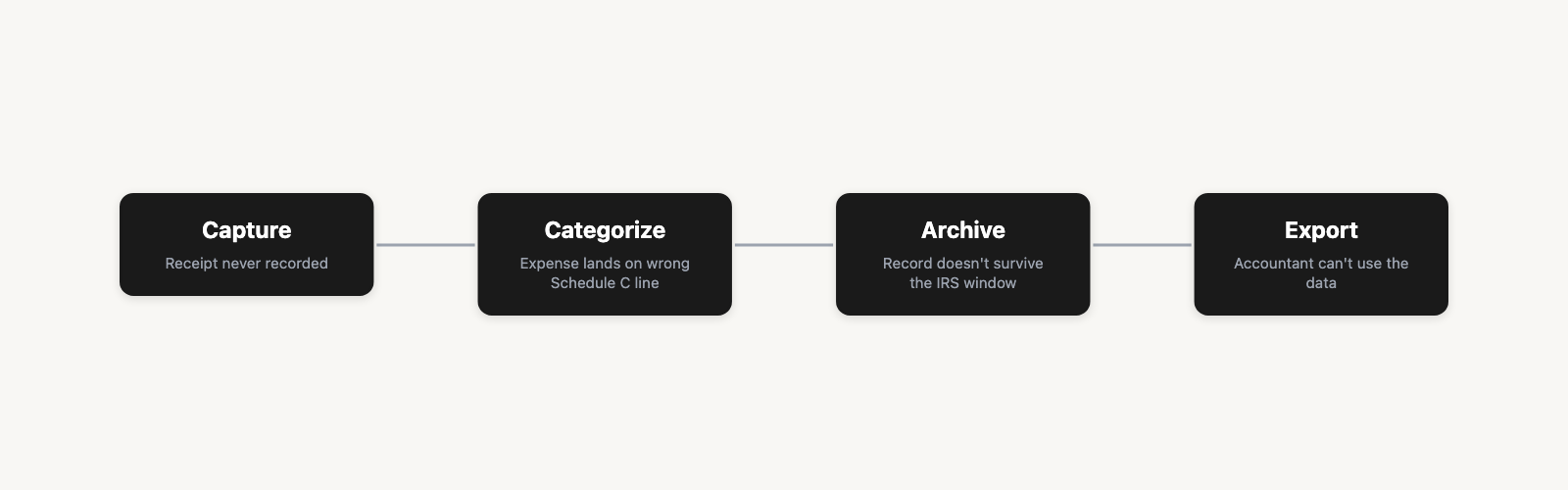
Each stage is covered in sequence below.
Stage 1. Capture: What Happens in the First 30 Seconds
The scan itself is table stakes. What matters is what the scan extracts and whether it works outside of a wifi coffee shop.
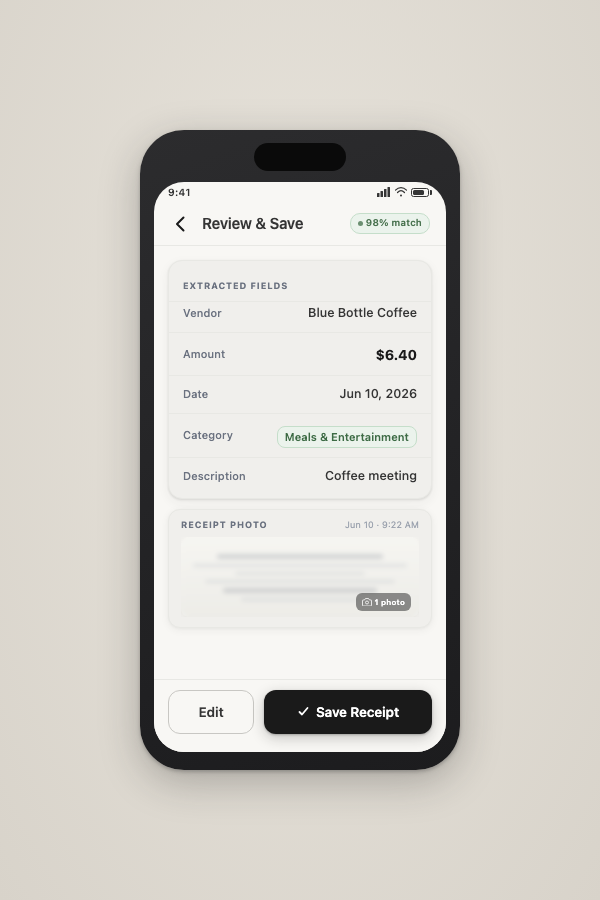
ReceiptNote uses on-device OCR combined with a visual language model to extract vendor name, amount, date, category, and line items from a receipt photo. The model runs on the iPhone, which means it works offline. If a scan produces a low-confidence read, the app flags it for manual review rather than silently saving incomplete data.
The practical capture flow: open the app, point the camera at the receipt, review the extracted fields, confirm or correct, and move on. The correction matters: if the AI reads "Staples" as "Supplies" when the correct category is "Office Supplies" under your chart of accounts, you fix it once and the model learns from that correction going forward.
The companion post on scanning habits that prevent downstream data gaps covers timing and field-completion practices that keep the archive accurate from the start.
Where Expensify differs: Expensify's Collect plan runs at $5 per member per month, structured for teams where a company reimburses employees. [5] That model makes sense for a small business with several people expensing. For a solo 1099 contractor, it is a per-seat subscription where you are the only seat, and the reimbursement workflow does not apply.
New AI receipt scanners keep entering the market on Product Hunt, [8] many focused on scan quality as the differentiator. A clean extraction is the starting point. The expense only becomes deductible when it lands in the right Schedule C category, and that is where most tools stop helping.
Stage 2. Schedule C Mapping: The Category That Changes Your Tax Bill
Schedule C Part II is the line-by-line expense section of the business profit and loss form that every self-employed person and sole proprietor files with Form 1040. [2] It lists specific categories: advertising, car and truck expenses, commissions and fees, insurance, legal and professional services, office expenses, rent or lease, repairs and maintenance, supplies, travel, meals, utilities, wages. Each line is a bucket, and the deduction lives or dies based on whether the expense landed in the right one.
A few common examples for 1099 contractors:
- Advertising: Freelance platform fees, paid social ads for your services
- Supplies: Printer ink, cable ties, batteries used in client work
- Meals: Client lunch (50 percent deductible; requires business purpose note)
- Home office: Proportional rent or mortgage interest for a dedicated work space
- Travel: Flights and hotels for client-facing work
Keeper's analysis attributes the 21 percent average overpayment to missed or miscategorized deductions, [1] and meals and home office are two of the most consistently under-captured categories for solo contractors specifically. They are easy to forget because they do not feel like "business" expenses the way a software subscription does.
ReceiptNote's AI assigns a category at capture and learns from corrections. The assignment is a starting point, not a final tax determination. Every category should be reviewed before the return is filed. The app is a documentation and organization tool; it does not replace a tax professional's judgment on whether a specific expense is deductible in your situation.
For a precise accounting of what a business expense record must prove under IRS rules, the companion post covers the five-element standard that determines whether a record is adequate.
Where ExpenseOwl differs: A thread on Hacker News around the ExpenseOwl self-hosted tracker showed a vocal segment of users who find mainstream expense trackers over-built: forced budgets, tags, wallet structures. [4] For that segment, a "pick a category, add cost" interface is the right tool. The practical limit for Schedule C filers is that "any category" is not the same as the right Schedule C line. If the app does not offer the specific categories that map to Part II, the record exists but the categorization work is deferred to the accountant or tax time, not saved.
See ReceiptNote's Schedule C categories in action. Start free, no card required.
The right category maps the expense. The next question is how long that record needs to last.
Stage 3. Archive: How Long Your Records Need to Survive
The IRS retention window is not three years. It is three years in the most common case. Several situations extend it.
The IRS "How long should I keep records" guidance sets out the periods of limitations directly: [3]
- 3 years from the filing date (or due date, whichever is later) for a standard, accurately reported return.
- 6 years if you underreported income by more than 25 percent.
- 7 years if you filed a claim from a bad debt deduction or a loss from worthless securities.
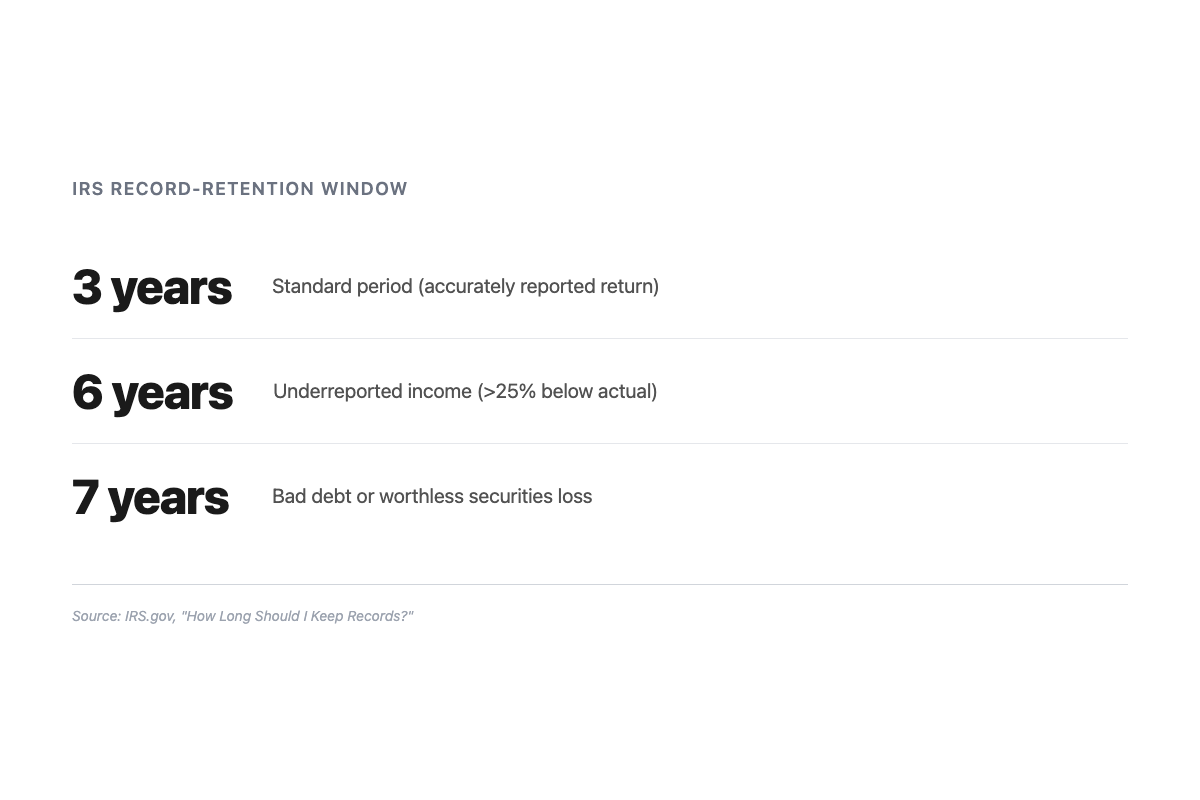
Most 1099 contractors need three to six years. The seven-year window applies specifically to bad-debt claims and worthless-securities losses, which are less common for solo service providers. The range still matters: if you significantly underreport income in a given year, the window on that year's records doubles.
ReceiptNote syncs receipts to the cloud and across devices ("scan on your phone, review on your laptop"). The Receipt Archive stores records beyond a single device or tax season. That solves the most common practical failure mode: a new phone, a wiped device, or a hard drive that does not survive the move to a new office. There is no product-enforced retention countdown because the IRS rules vary by situation. The archive is a durable store; the retention decision belongs to you and your tax professional.
One honest disclosure: ReceiptNote's free tier has a receipt limit. The Pro plan unlocks full storage, export, and category insights. If you are capturing receipts for multiple years of active freelancing, the limit is worth planning around early rather than discovering it during a records request.
With a capture on file, the right category assigned, and a durable archive in place, the record is complete. The last step is getting it out of the app and into an accounting tool without re-entering every line by hand.
Stage 4. Export: Getting Receipts Into QuickBooks or Xero
At some point the receipts need to leave the app. Either you are doing your own books in QuickBooks or Xero, or you are handing a file to an accountant, or both.
ReceiptNote exports in two formats: CSV and PDF. The CSV columns are Date, Vendor, Amount, Category, and Description, which matches the fields QuickBooks Online and Xero both accept in their CSV transaction import flows. The export is accessed through the Settings screen in the app: select a date range, choose the format, and download the file.
To be precise about what this is: it is a file export, not a native accounting software integration. You download the CSV and import it into QuickBooks or Xero through their standard import screens. QuickBooks Online accepts CSV imports via Banking > File Upload. Xero accepts them via Accounting > Bank Accounts > Import a Statement. Both tools handle this without additional configuration. The connection is not automatic or real-time, but the re-entry is eliminated.
Where Dext differs: Dext, formerly Receipt Bank, uses a per-document pricing model aimed at accounting firms and bookkeepers managing multiple client files, with tiered plans running approximately $25 to $40 per month according to third-party reporting. [7] Pricing for services like Dext changes, so verify current rates directly. The model reflects its primary use case: a bookkeeper handling volume across several clients. For a solo contractor managing their own receipts, the per-document structure is a different fit than a per-receipt-free consumer tier.
Where Expensify differs: Expensify does offer direct accounting integrations, which is a genuine advantage for teams that need real-time expense sync. At $5 per member per month, [5] the integration value is easier to justify when the team is sharing it. For a solo contractor, CSV export covers the same ground at a lower cost.
With all four stages in view, the comparison across tools becomes cleaner to read.
How the Main Receipt Apps Compare on the Full Self-Employed Cycle
| Tool | Stage 1: Capture | Stage 2: Schedule C | Stage 3: Archive | Stage 4: Export | Pricing model |
|---|---|---|---|---|---|
| ReceiptNote | On-device AI scan, offline capable | AI category mapping, user-correctable | Cloud archive, cross-device | CSV and PDF export (import into QuickBooks/Xero) | Free tier; Pro for full storage, summaries, and export |
| Expensify | Receipt scan | Expense categories | Cloud | CSV/PDF and direct accounting integrations | $5/user/month (team-seat model) |
| Dext | Document capture | Category and coding | Cloud | Accounting software integrations | Per-document, tiered (~$25 to $40/mo, bookkeeper-aimed) |
| ExpenseOwl | Manual entry and basic scan | Simple category selection | Self-hosted or cloud | Limited | Free / self-hosted |
Expensify's direct integrations are a real advantage for teams. The $5-per-seat model makes most sense when a company is managing shared expenses and reimbursements across multiple people. Solo contractors pay for infrastructure they will not use.
Dext is built for bookkeepers managing several clients at document volume. If you have a bookkeeper and they prefer Dext, that is a workflow decision worth respecting. If you are managing your own books as a solo operator, the per-document model is priced for a different use case.
ExpenseOwl serves the "minimal complexity" segment well. The community evidence confirms there is real demand for a tool that does not impose budget structures or category hierarchies. The tradeoff for Schedule C filers is that the category precision a 1099 contractor needs at tax time is not built in.
ReceiptNote's differentiator is its workflow for capturing, organizing, understanding, and exporting receipts from a free-entry solo tier.
The Keeper 21% overpayment figure is a documentation problem as much as a math problem. [1] A deduction the IRS cannot verify is a deduction that may not hold. A receipt captured in January is only as useful as the record it becomes: categorized to the right Schedule C line, preserved across the retention window, and exportable when the accountant asks for it.
ReceiptNote is the receipt app for self-employed contractors built for the full cycle from the first scan. Free to start, no card required.
References
- Keeper: Gig Workers Overpay on Taxes by 21 Percent (analysis of 205 gig-worker returns, reviewed by an IRS Enrolled Agent; vendor study, not a government figure) https://www.keepertax.com/research/gig-workers-overpay-on-taxes-by-21-percent
- IRS: About Schedule C (Form 1040), Profit or Loss From Business https://www.irs.gov/forms-pubs/about-schedule-c-form-1040
- IRS: How long should I keep records? https://www.irs.gov/businesses/small-businesses-self-employed/how-long-should-i-keep-records
- Hacker News: Show HN: ExpenseOwl, Simple self-hosted expense tracker (community thread, 2025-02-07; developer sentiment, not a survey) https://news.ycombinator.com/item?id=42977388
- Expensify: Expensify Launches Simplified $5 Pricing Plan for SMBs (investor relations) https://ir.expensify.com/news-releases/news-release-details/expensify-launches-simplified-5-pricing-plan-smbs
- Nanonets: Top 13 Best Receipt Scanner Apps in 2025 https://nanonets.com/blog/top-receipt-scanner-apps/
- ITQlick: Dext (formerly Receipt Bank) pricing (third-party-reported; verify current rates directly with Dext) https://www.itqlick.com/receipt-bank/pricing
- Receipt AI: Receipt AI is on Product Hunt Today (category evidence: new AI receipt scanners continue to launch) https://receipt-ai.com/articles/receipt-ai-is-on-product-hunt-today